
For DALCPA staff
Clients, engagements, lists, and the templates behind them.
Signing in
1Google account plus a text code
- At dalcpa-portal.pages.dev, click Sign in with Google (DALCPA staff) and pick your DALCPA account.
- Enter the code sent to your phone.
- Three tabs: Clients, Templates, Engagement types.
Clients
2One row per school
- Each row shows the school's engagements as chips (year and status) and a progress bar for the one in progress.
- Type in Search schools to filter.
- Click a row to open the school.
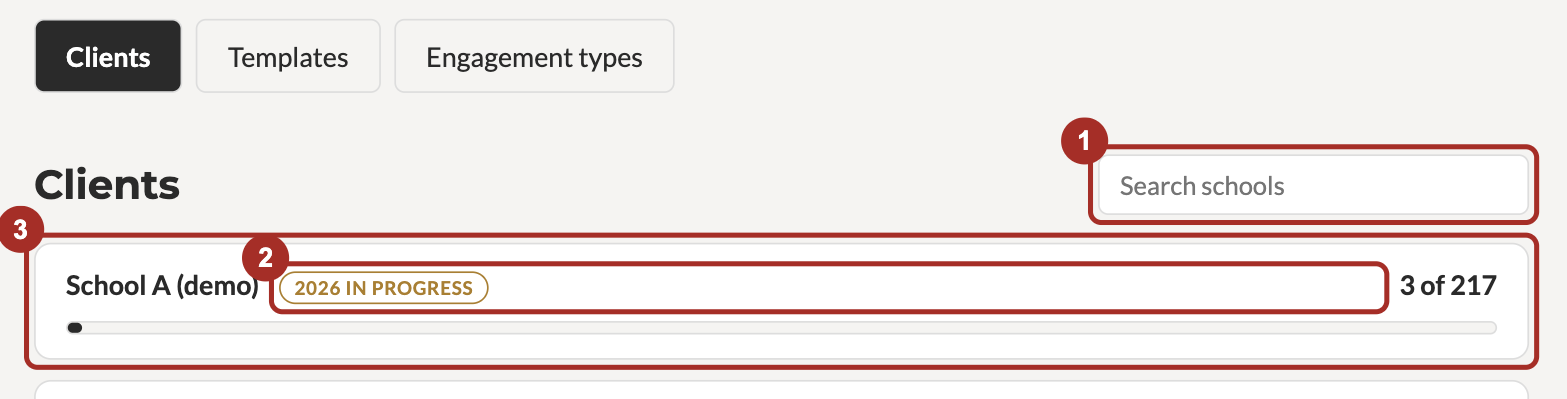
- 1Search schools
- 2Engagement chips: year and status
- 3Click the row to open the school
A school
3Engagements, one card per year
- Each card shows the type, status, file review date and progress. Click it to open the engagement.
- + New engagement: year, type, file review date. The standard lists for the type attach on creation.
- A new engagement starts as Not yet assigned: hidden from the school until you set it to In progress.
- School settings: the school's Google Drive folder, used once Drive routing is on.
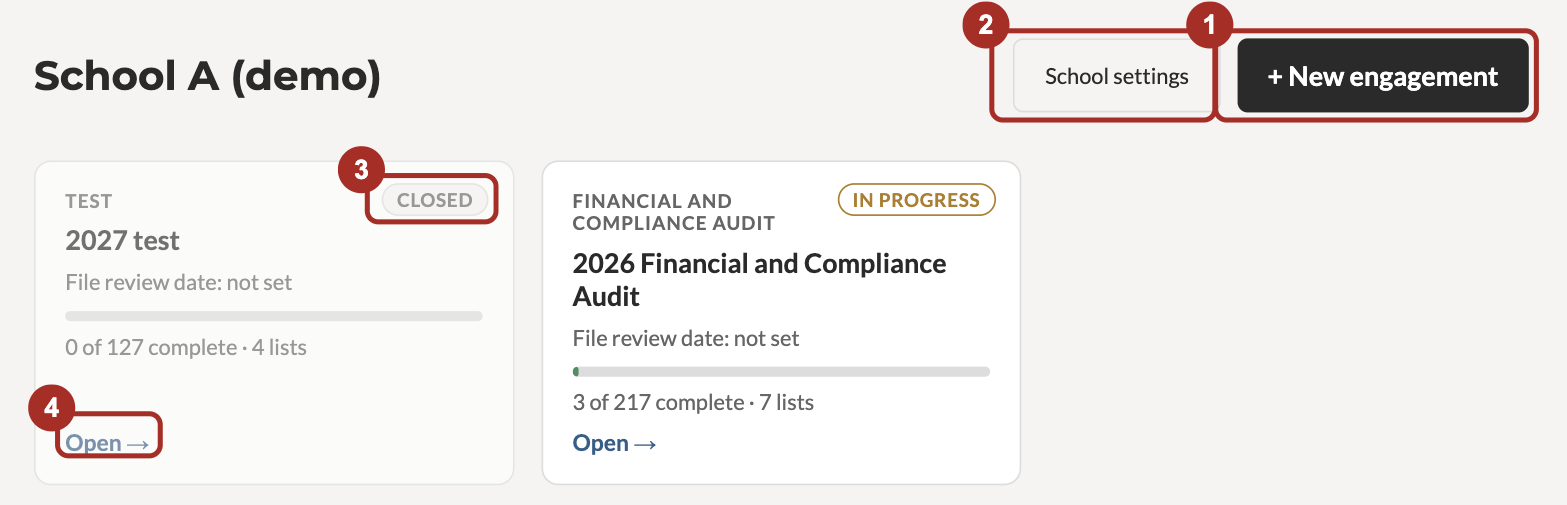
- 1New engagement
- 2School settings (Drive folder)
- 3Status chip
- 4Open the engagement
An engagement
4Status, review date, lists
- The row under the title: optional name, engagement type, status, file review date.
- Changing the type attaches any lists it needs. Nothing is removed.
- Status is automatic (In progress, or Complete when everything is done) unless you set it. Not yet assigned hides the engagement from the school. Closed means signed off and takes it off the Clients page.
- Each list is a panel with its progress. Drag ⋮⋮ to reorder. Assign a list adds one.
- Remove asks you to confirm and records who removed the list and when. Files already uploaded stay in ShareFile.
- The box at the bottom sends a note the school sees on its home page.
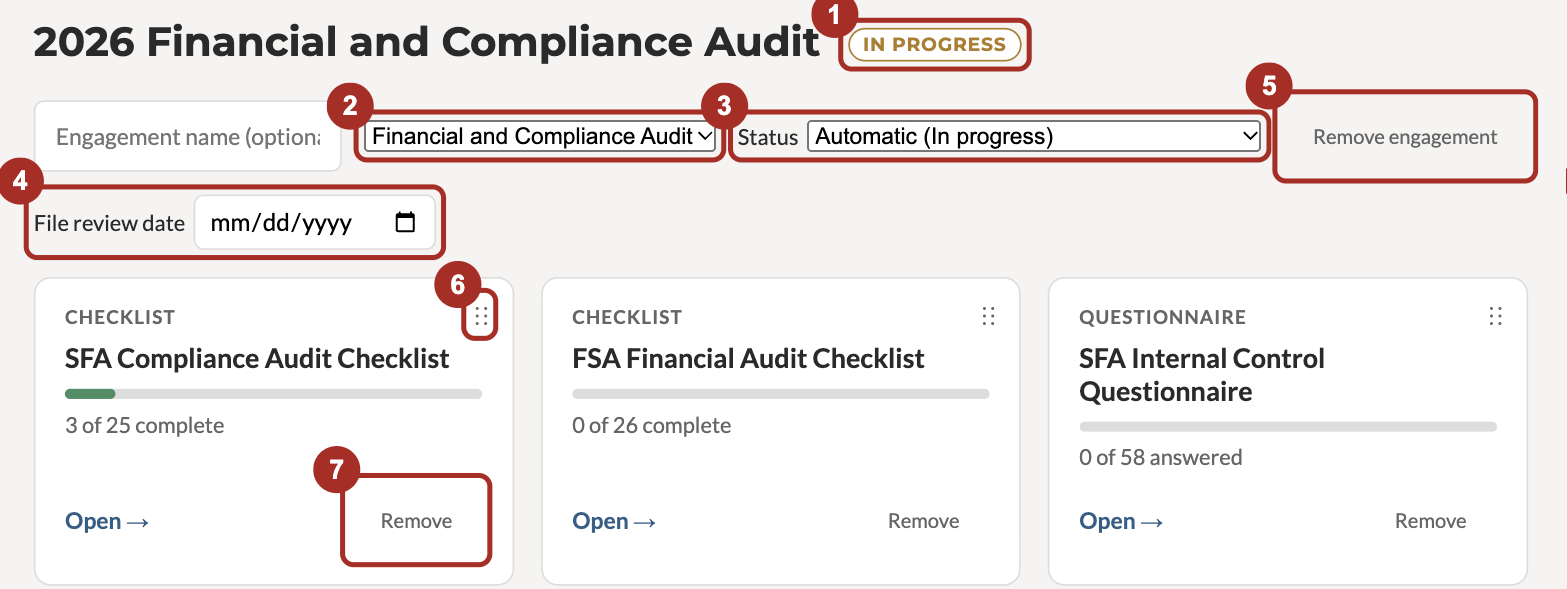
- 1Status chip
- 2Engagement type
- 3Status
- 4File review date
- 5Remove engagement
- 6Drag to reorder lists
- 7Remove a list
A checklist
5The school's view, with your controls
- Same layout the school sees. The status dropdown is live for you.
- An upload marks the item Uploaded/Completed. Set it back to Incomplete if the file is wrong; the school sees it reopened on its home page.
- The school's note on an item, and any removed files with their reasons, show on the item.
- Open folder in ShareFile goes to the item's folder.
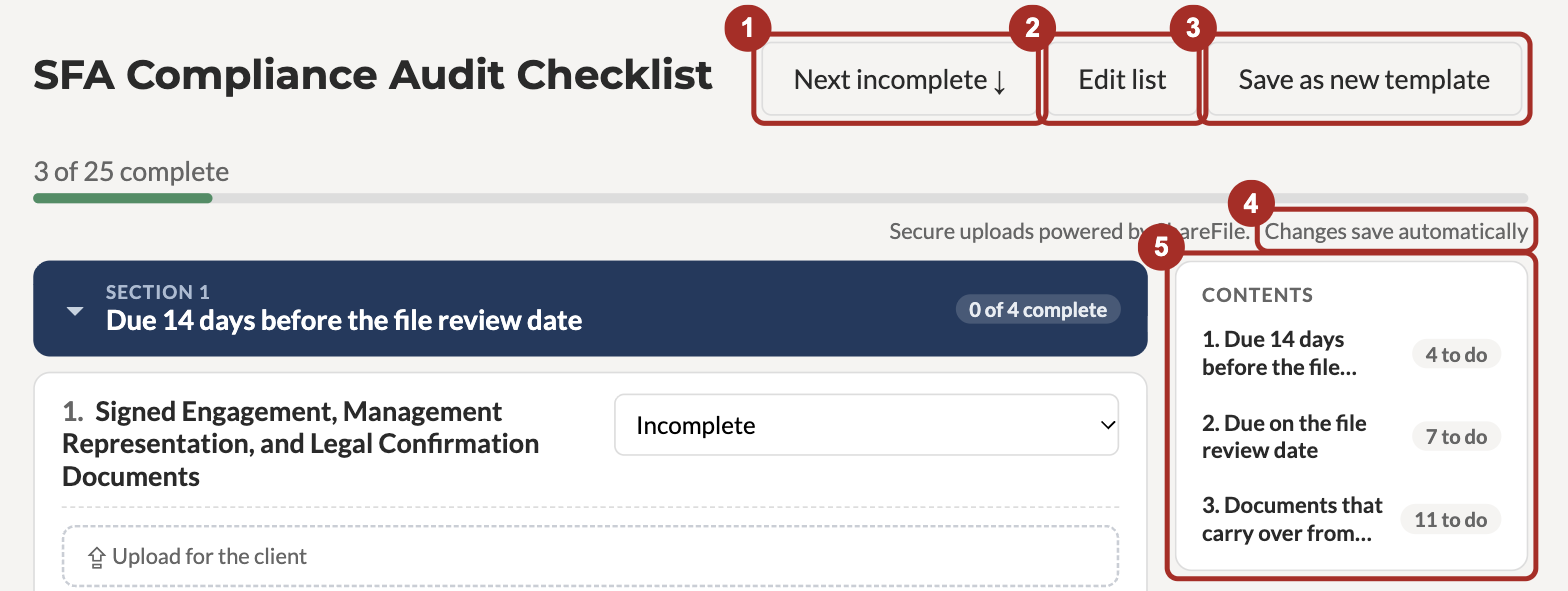
- 1Next incomplete
- 2Edit list
- 3Save as new template
- 4Autosave status
- 5Contents: jump to a section
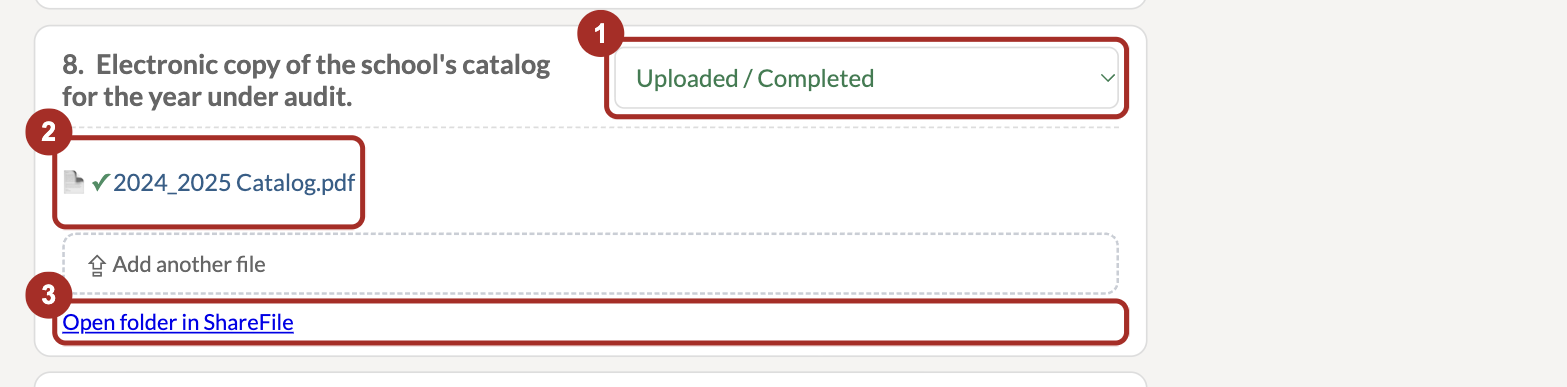
- 1Status dropdown
- 2Uploaded file: click to download or remove
- 3Open folder in ShareFile
Editing a list
6Edit list changes this school's copy only
- Edit list at the top opens the editor on the school's copy. The template is untouched.
- Click a card to edit it. Title on the first line, guidance under it. Everything saves as you go.
- ⇣ at the end of the guidance line inserts a download link to a file in Portal Resources.
- Toolbar, left to right: Type (Document request, Question, Linked list) and Format for questions; then the options Yes/No condition, Required, Allow "No change"; then Duplicate and Delete.
- The rail on the right adds a document request, a question, a linked list or a section.
- To change a list for every future school, edit the template on the Templates tab. Schools that already have their copy keep it.
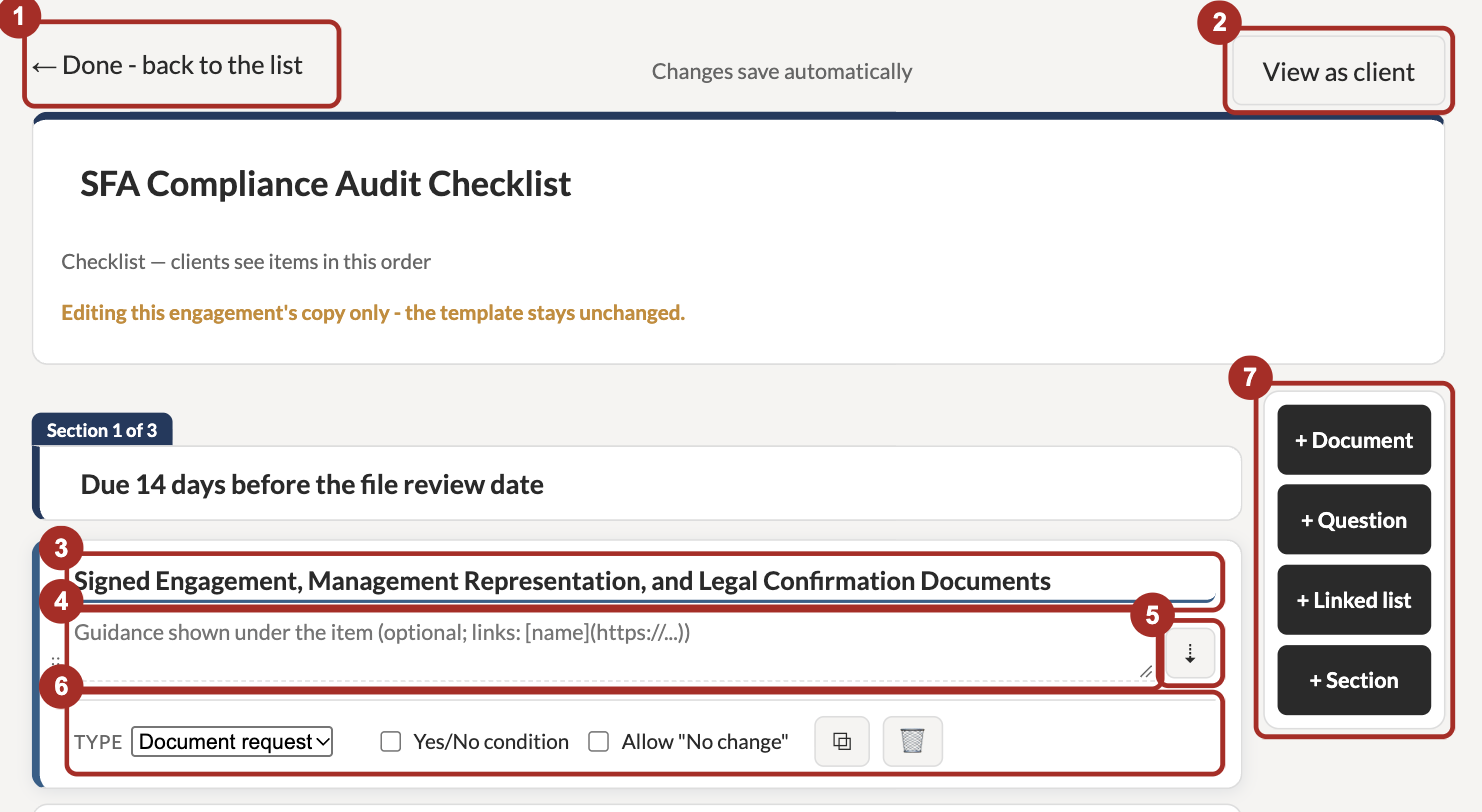
- 1Done - back to the list
- 2View as client
- 3Title
- 4Guidance
- 5Insert a template download
- 6Type, format, options, duplicate, delete
- 7Add an entry
Templates
7The firm's checklists and questionnaires
- Engagement types draw from these.
- Drag ⋮⋮ to set the default order schools see. Mark standard and Archive are on each row.
- Open one to edit it. Edits apply to engagements assigned from then on.
- Save as new template on a school's customised list promotes it here.
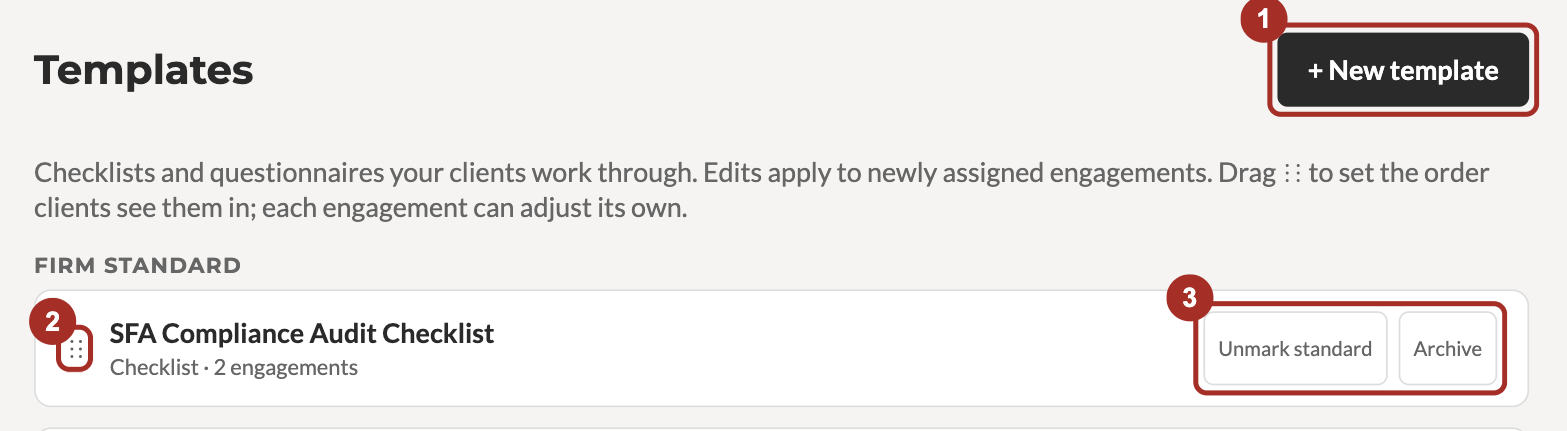
- 1New template
- 2Drag to set the order
- 3Mark standard / Archive
Engagement types
8Which lists attach for which audit
- Financial, Compliance, Financial and Compliance, and any you add.
- Click a type and tick the checklists and questionnaires it includes.
- + New type creates one; choose its lists next.
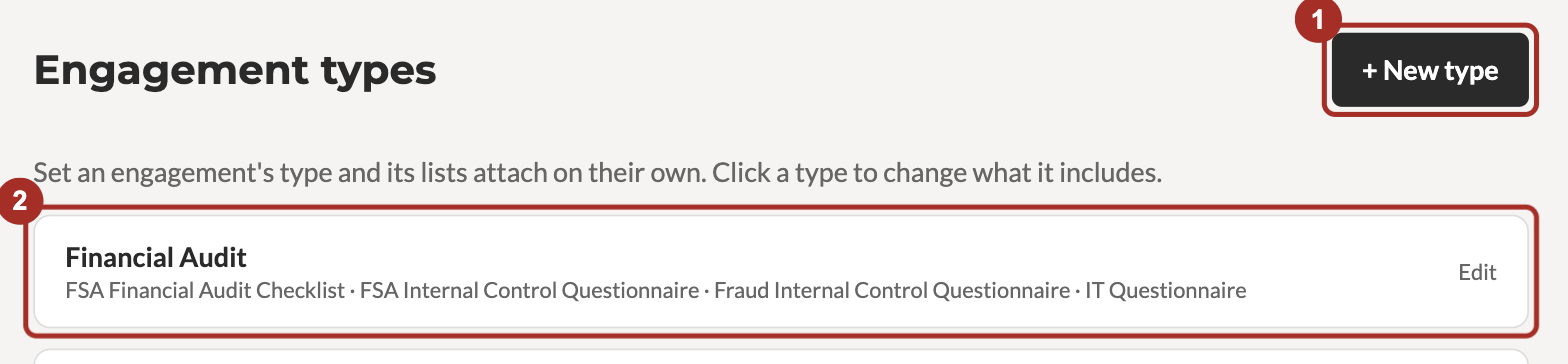
- 1New type
- 2Click a type to choose its lists
Portal Resources
9Files handed to schools
- The Portal Resources folder in the firm ShareFile holds the blank templates and worksheets handed to schools.
- Drop a file there and it appears in the ⇣ picker in the editor.
- The school downloads it from the item, behind its login. Nothing is shared publicly.
Removing a file from an item never deletes it from ShareFile. Removing a list from an engagement deletes that school's statuses and answers for it; the files stay in ShareFile.