
For schools
How to send DALCPA what they need for your audit.
Signing in
1Go to dalcpa-portal.pages.dev
- Enter the email and password DALCPA gave you.
- Forgot the password? Contact your auditor.
- The "Sign in with Google" button is for DALCPA staff only.
Home page
2What needs your attention
- Needs your attention lists each checklist or questionnaire that still has open items, with a count. Click Open to go straight to it.
- Your engagements shows each audit year with its overall progress and the file review date.
- Notes from DALCPA shows messages your auditor has sent you.
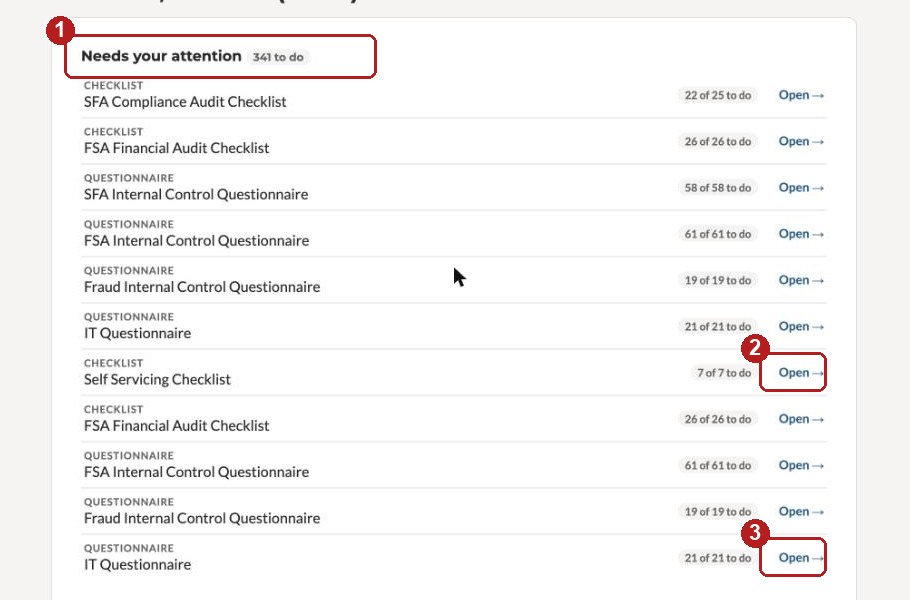
- 1What still needs work, per list
- 2Open: go straight to that list
- 3Your engagements: open one
Your engagement
3One panel per list
- Each checklist and questionnaire is a panel with its own progress.
- Click a panel to open it. Use the Contents rail on the right of a list to jump between sections.
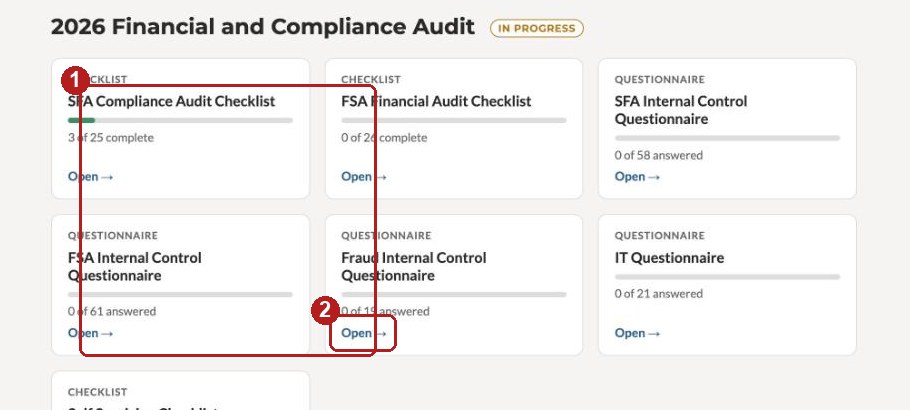
- 1A list: its own progress
- 2Open the list
A checklist
4Items, numbered as in your Drive folders
- Each item shows the document requested, any guidance under it, and a status on the right.
- Next incomplete at the top jumps to the next open item.
- Some items start with a Yes/No question. The answer decides what comes next: an upload box, or another list added to your engagement.
- Sections you have finished collapse; click a section bar to open it again.
- Changes save automatically. The line under the progress bar says "Saved" after each one.
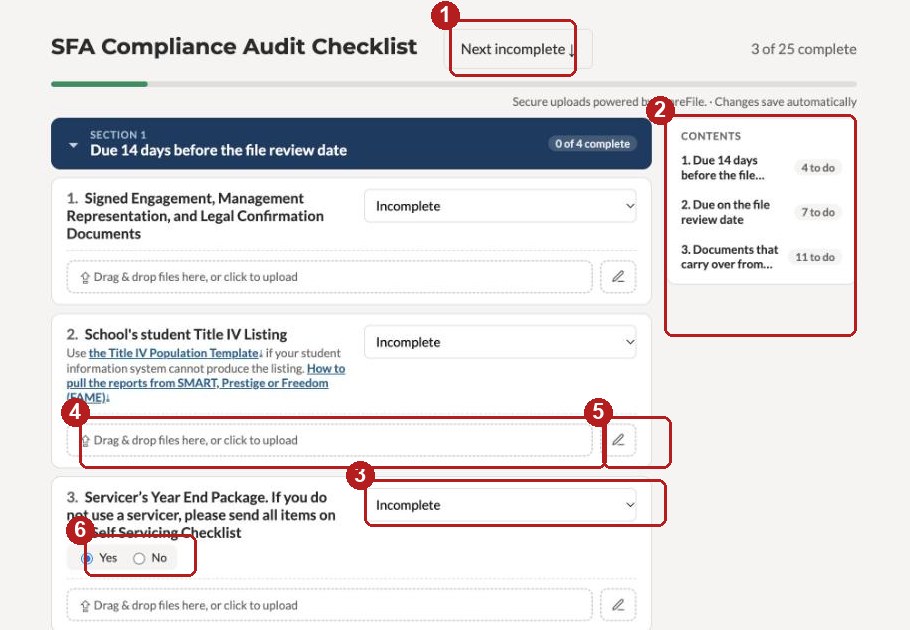
- 1Next incomplete
- 2Contents: jump to a section
- 3Status dropdown
- 4Upload box: drag files here or click
- 5Pencil: note for your auditor
- 6Yes / No question
Uploading a file
5Drag onto the box, or click it
- Drop one or several files onto the dashed box, or click it to choose files.
- Each file lands in the folder for that item and the item is marked Uploaded / Completed.
- Click a file name to download it, or to Remove it. Removing asks for a reason, which your auditor sees. The file itself stays with DALCPA.
- To replace a file, upload one with the same name.
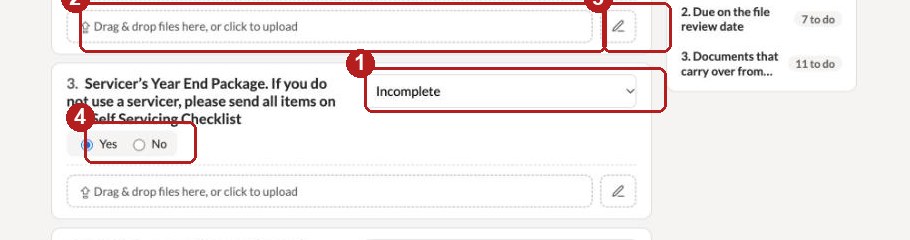
- 1Status
- 2Upload box
- 3Pencil: note for your auditor
- 4Yes / No decides what appears next
Statuses
6What the dropdown means
- Incomplete: nothing sent yet.
- In progress: you have started.
- N/A: does not apply to your school.
- No change from last year: offered on some items; use it when the document DALCPA already has is still current.
- Uploaded / Completed: set when you upload. Your auditor may set it back to Incomplete if something is missing; the item then reappears on your home page.
Notes to your auditor
7The pencil beside the upload box
- Click the pencil to leave a note on that item, for example why a document is late or which file is which.
- Your note saves when you click away and shows on the item for your auditor.
The pencil is marker 3 in the picture under "Uploading a file".
Questionnaires
8Answer each question
- Yes/No questions are buttons; others are text boxes. Type, then click away; the answer saves.
- Finishing a questionnaire completes the matching item on your checklist.
- You can come back and change answers until the audit is closed.
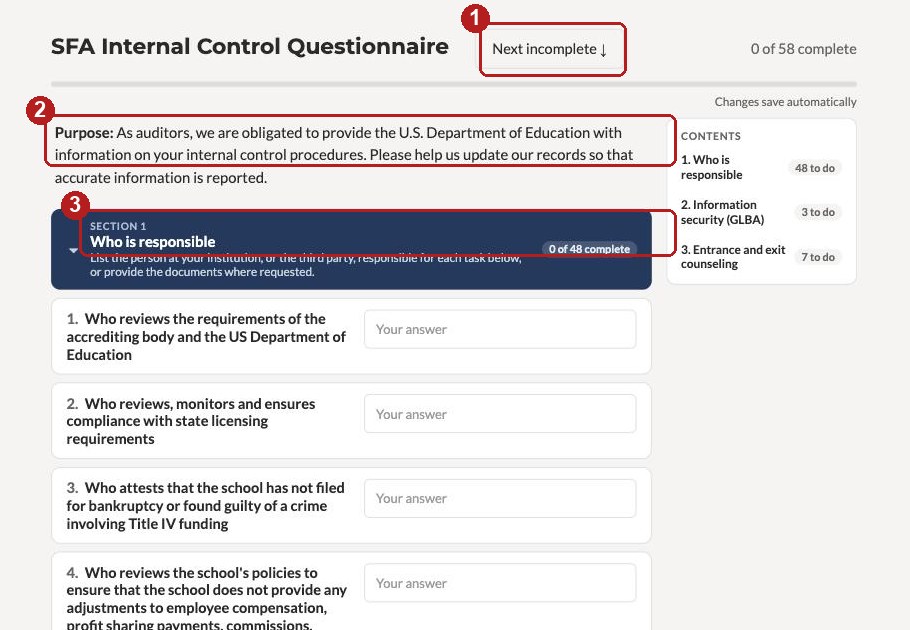
- 1Next incomplete
- 2Instructions at the top
- 3Section: click to open or close
Templates from DALCPA
9Download links in the guidance
- Some items include a link to a worksheet or template from DALCPA.
- Click it to download the file. Fill it in, save it as Excel or PDF, and upload it on the same item.

- 1Link to a worksheet or template: click to download